
Submission Records
Submission Records helps solve a review problem: after you have submitted to a batch of directories, you want to know what is done, what still needs follow-up, and what failed.
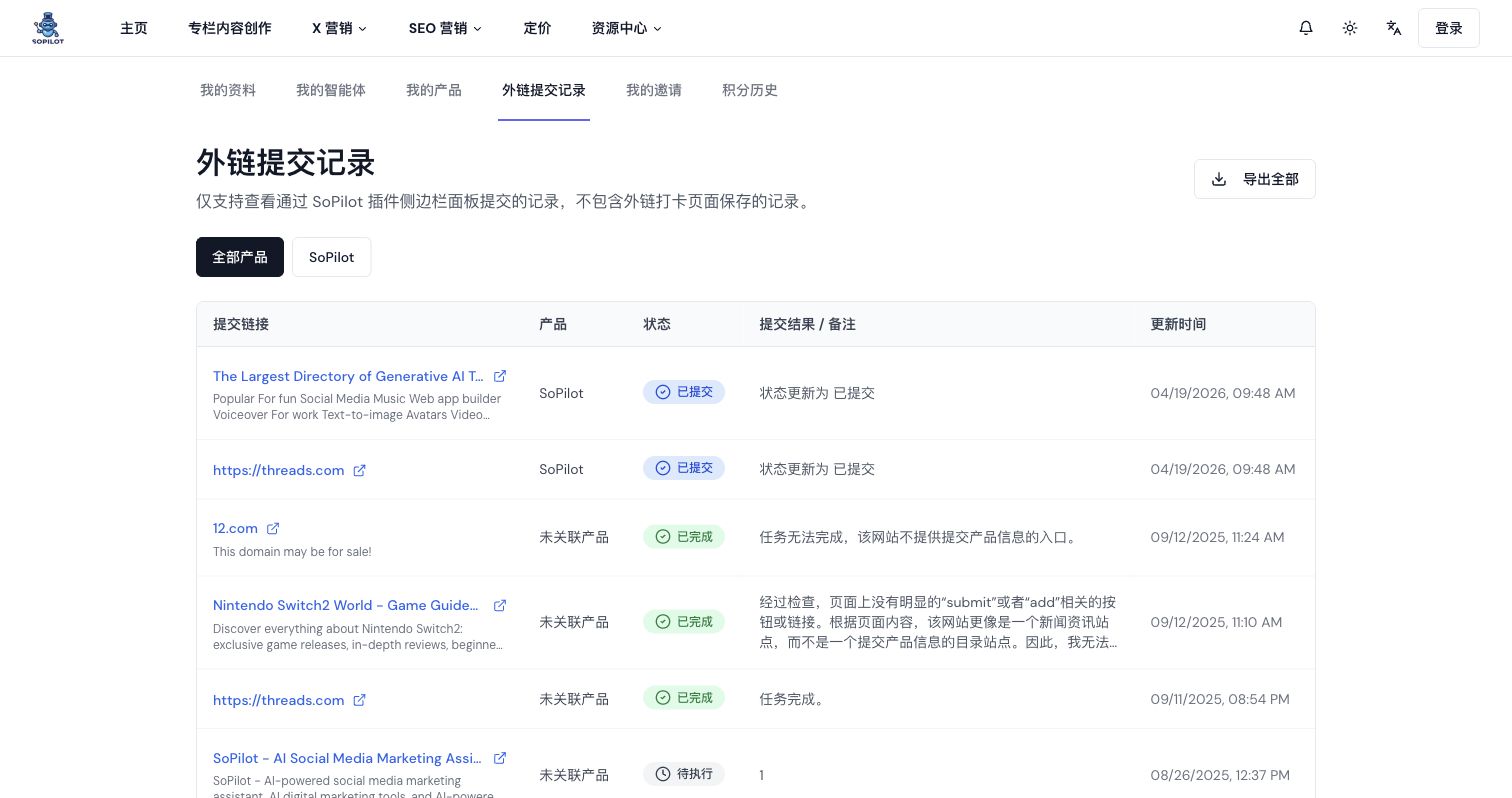
It mainly shows directory submission records saved from the SoPilot plugin sidebar. It does not include records saved separately inside the backlink check-in page.
Quick links
Page screenshot
When this page is useful
- You just submitted a batch of directories and want to check statuses in one place
- You are working on multiple products and want to filter records by product
- You want to identify failed, pending, or unlinked records
- You want to export results for review, organization, or handoff
Page overview
The page includes:
- an
Export Allbutton - an
All Productsfilter - product-specific filter buttons
- a submission records table
- pagination
If there are no records yet, the page will show an empty state.
Table fields
Submission link
Shows the directory site title, submit entry, or submission URL. You can click it to open the original page.
Product
Shows the product linked to that record. If it shows Unlinked Product, the record is not attached to a specific product.
Status
Shows the current submission or execution status.
Submission result / note
Shows result details, execution notes, failure reasons, or agent notes.
Updated at
Shows when the record was last updated.
Status reference
Common statuses include:
PendingSubmittedSubmitted for ReviewQueued After SubmissionFailedIgnoredIn ProgressCompletedExecution FailedUnsupported SubmissionSubmission Queued
Recommended workflow
Step 1: Open the records page
Go to Submission Records.
Step 2: Filter by product
If you manage multiple products, start by selecting one product so you only review the relevant records.
Step 3: Review statuses
Pay extra attention to records such as:
FailedExecution FailedPendingSubmitted for ReviewQueued After SubmissionUnlinked Product
Step 4: Read notes
In the Submission result / note column, confirm:
- whether the submission actually succeeded
- whether manual follow-up is still needed
- whether the site was unsupported
- whether there is a clear error message
Step 5: Re-open the original page if needed
If you need to verify something, click the submission link and inspect the original directory page again.
Step 6: Export the records
If you need to review, organize, or hand off the results, use Export All.
When a product filter is active, export will follow that filter. Without a filter, it exports everything.
Tips
- Review this page after each batch of directory submissions
- Prioritize failed items and records that still need follow-up
- Fix
Unlinked Productrecords as early as possible - Filter by product before exporting to keep the results easier to review
Common questions
Why are there fewer records than expected?
This page only shows records saved from the SoPilot plugin sidebar. It does not include records saved separately inside backlink check-in workflows.
Does Completed mean the site has accepted or listed my product?
Not necessarily. Completed only means the execution flow ended. Actual listing approval still depends on the directory site.
What does Unlinked Product mean?
It means the record is not attached to a product profile. That makes filtering, exporting, and review harder later, so it is best to select the correct product during submission.
Related docs
- Directory Submission Workflow
- Product Information Prep
- Backlink Resource Search
- 30-Day Backlink Check-in
Get Help
- Visit the SoPilot Help Center
- Open Submission Records to review your records
- Email
[email protected]