
Product Management
Product Management is where you maintain reusable product information inside SoPilot. The information saved here is used directly by directory submission, auto-fill, and some agent workflows.
Quick links
Page screenshot
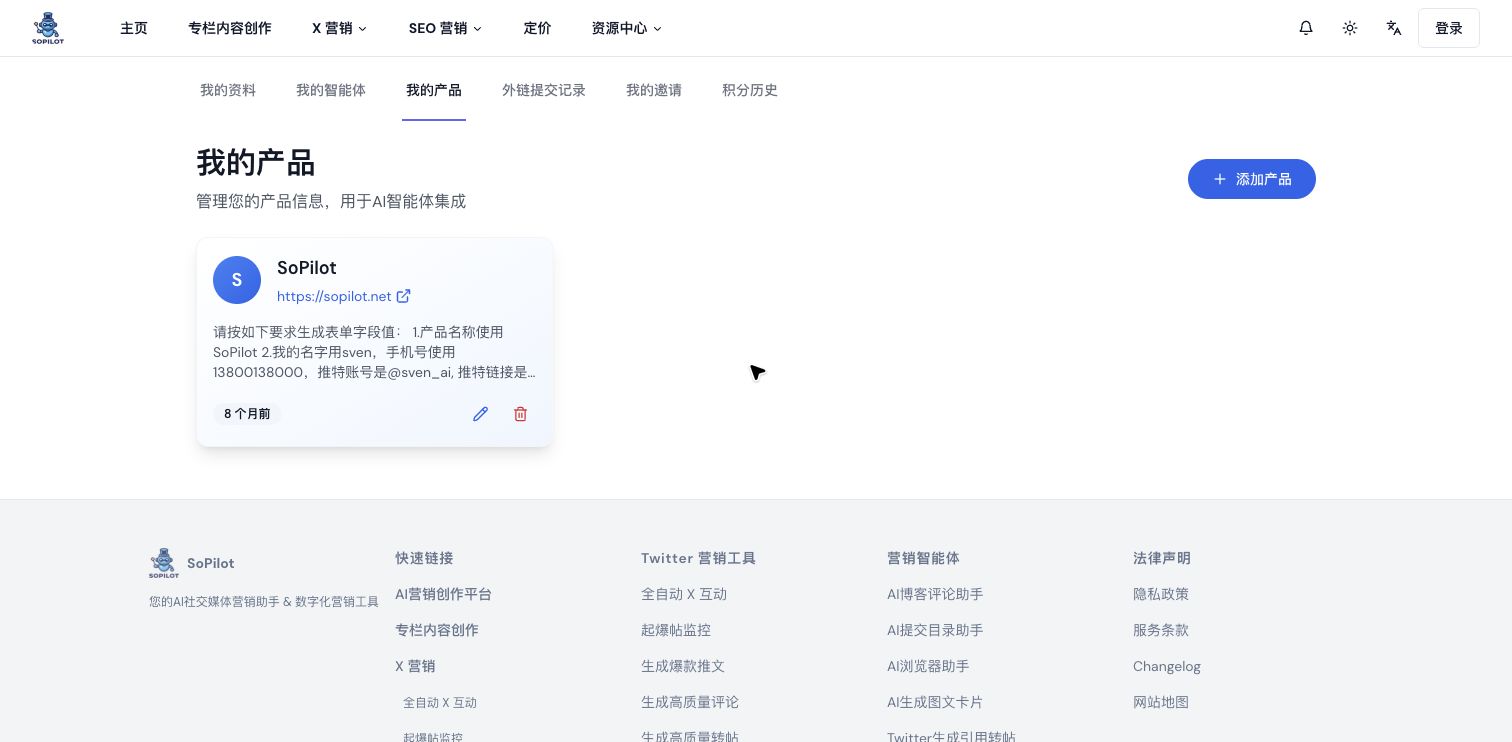
Page overview
The page includes:
- an
Add Productbutton - a list of product cards
- each product's website URL
- the last updated time
Edit ProductandDelete Productactions
If there are no products yet, the page shows an empty state and an Add Your First Product button.
Form fields
When you click Add Product or edit an existing one, SoPilot opens the product form.
Product URL
Use the official product website, for example:
https://example.com
This field is used to:
- generate a first draft of product information
- reuse the URL later during directory submission
Product Name
Enter the product's official name. It will appear in:
- the product list
- submission record filters
- some automation flows
Product Information Prompt
This is the reusable product description used by SoPilot AI and auto-submission flows. It is helpful to include:
- product name
- website URL
- one-line description
- core features
- target audience
- pricing model
- common contact information
Recommended workflow
Step 1: Open the page
Go to Product Management.
Step 2: Create a product
- click
Add Product - fill in
Product URL - fill in
Product Name - write or generate
Product Information Prompt - click
Create Product
Step 3: Use the generate button
If you have not organized the product description yet, enter the Product URL first and click Generate.
The Generate button creates a first draft based on the website. After generation, check:
- whether the product name is correct
- whether the website URL is correct
- whether the selling points are complete
- whether contact information still needs manual addition
Step 4: Edit a product
After creation, click Edit Product on the product card to update:
- Product URL
- Product Name
- Product Information Prompt
Step 5: Delete a product
If a product is no longer needed, click Delete Product. A confirmation prompt will appear before deletion.
Tips
- create the product record before starting directory submissions
- treat auto-generated content as a first draft and review it manually
- if you manage multiple projects, create a separate product for each one
- update the record whenever the product positioning, website, or description changes
Common questions
Why does saving fail when I create a product?
Common causes include:
- Product URL is empty
- Product Name is empty
- Product Information Prompt is empty
- Product URL is not a valid URL
Why is it recommended to create a product first?
Because directory submission and auto-fill read from this product record. The more complete it is, the more stable later automation usually becomes.
How long should the Product Information Prompt be?
Long enough to be accurate and reusable. The goal is not length, but whether it is useful for form filling and later content generation.