
Credit History
Share:
Credit History is where you review SoPilot credit details, filter by date range, and understand usage trends.
Quick links
Page screenshot
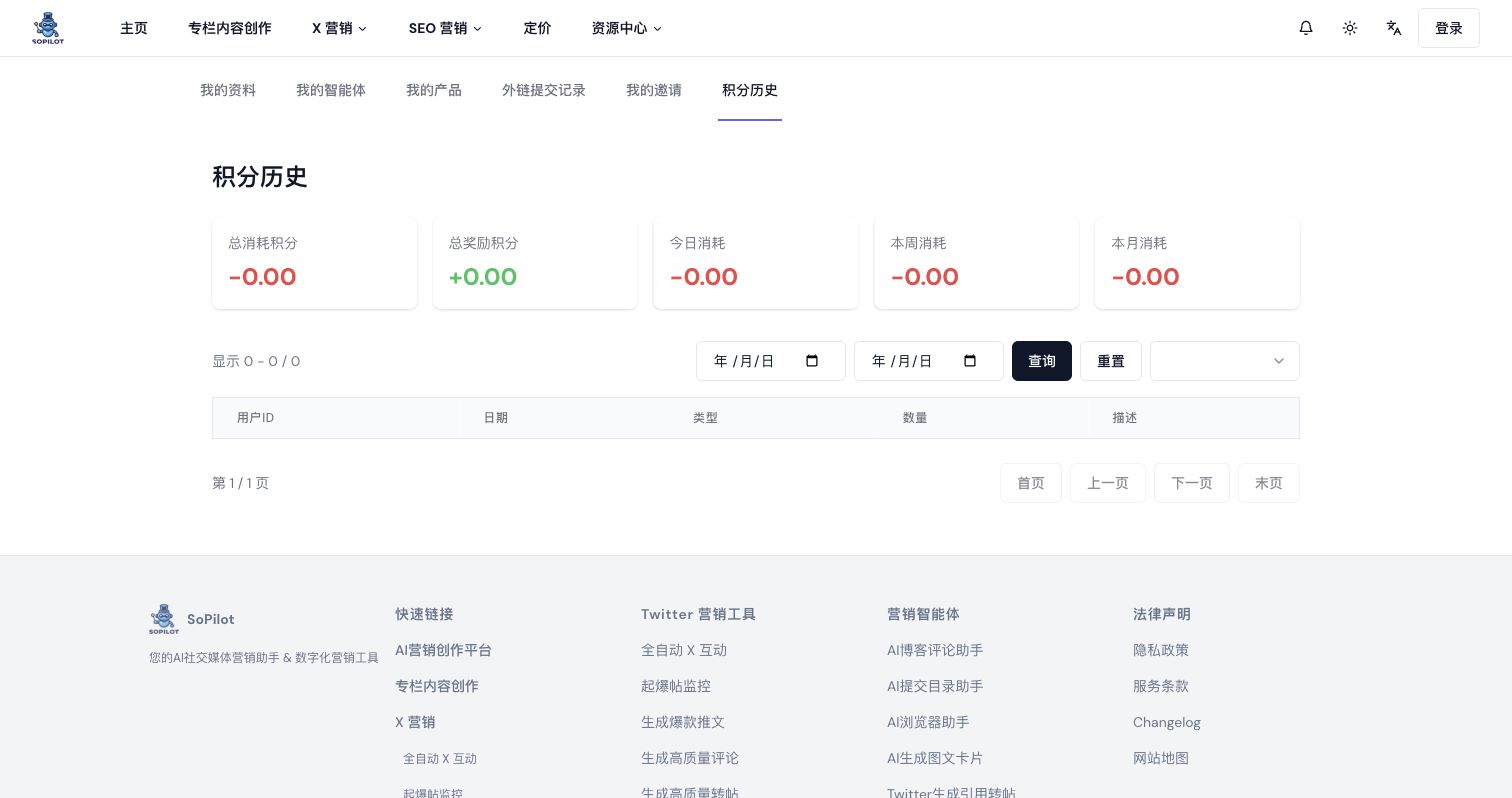
Page overview
The page includes:
- summary cards
- date filters
- page size selector
- the credit detail table
- pagination controls
Recommended workflow
Step 1: Review the summary cards
After opening Credit History, do not jump straight into the table. Start with the summary section:
- total spent
- total rewarded
- spent today
- spent this week
- spent this month
Step 2: Filter by date
If you want to investigate a specific period, use the date filter first:
- choose a start date
- choose an end date
- run the query
Step 3: Adjust page size
If there are many records, change the page size so review becomes easier.
Step 4: Inspect the detail table
The table usually includes:
- time
- type
- credit increase or decrease
- description
Pay special attention to:
- which records have unusually large consumption
- which records are rewards or refunds
- whether a certain action type appears repeatedly
Common questions
Why do I feel like I did not use much, but credits still dropped?
This is often caused by batch operations, automation runs, or multi-step generation flows that add up quickly.
Why are some records positive and some negative?
Positive values usually mean rewards or refunds. Negative values usually mean credit consumption.
Share: