
🔥 How to Use SoPilot for Automated X Engagement
If you are trying to grow a new X account, two of the highest-leverage moves are usually:
- follow-backs, so you can build your base relationship graph
- engagement, so people in your target circle start seeing you repeatedly under relevant posts
Both used to be slow and messy. You had to keep searching manually, open posts one by one, and think of a comment every time. With the SoPilot extension, you can now automate that workflow from the Automated X Engagement panel.
And now that the Engagement Options also support DM, you can extend the workflow beyond likes, comments, and follows into direct-message outreach as well.
Quick Links
It is worth bookmarking both the automated engagement page and the hot tweets page because you will likely reuse them often.
Before You Start
Make sure you already have:
- the SoPilot Chrome extension installed
- your SoPilot account logged in
- your X account logged in
If not, start with How to Install and Use SoPilot.
Open the Plugin Entry First
Once you are on X, click the SoPilot extension entry in the browser to open the sidebar.
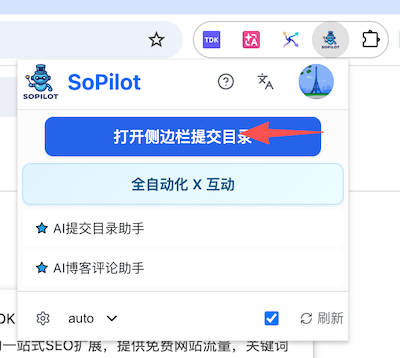
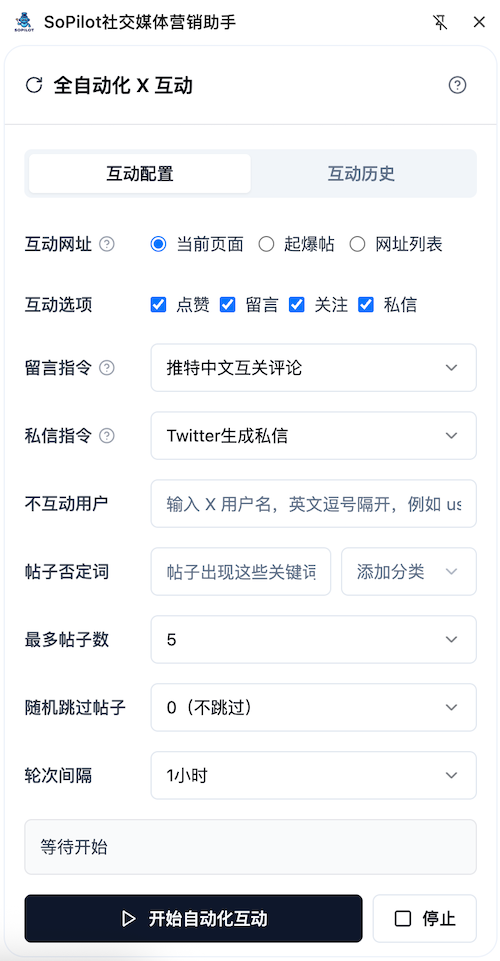
Then open the Automated X Engagement panel. The screenshot below shows the full configuration panel.
1. Follow-Back Automation
The goal of follow-back automation is simple: build your initial relationship network and become visible inside your target circle.
Step 1: Find follow-back posts worth engaging with
If your timeline already contains many follow-back posts, you can work directly from the current page.
If not, open X search and use this query to find recent follow-back posts that already have some traction:
This query is useful because it surfaces recent follow-back posts with at least some baseline engagement, which makes automation more efficient.
Step 2: Open the Automated X Engagement panel
From any X page, open the SoPilot sidebar and enter Automated X Engagement.
Step 3: Use this recommended setup
For a simple follow-back workflow, start with:
- set
Target URLtoCurrent Page - enable
Like,Comment, andFollow - set
Comment PrompttoChinese Follow-back Comment for X
If you do not want to automate DMs yet, leave DM unchecked.
Step 4: Click Start
Click Start Automated Engagement at the bottom, and SoPilot will run the follow-back workflow on the current page according to your configuration.
A good operating pattern is:
- first test one small batch and check whether the tone and rhythm feel right
- then gradually extend the runtime and let it run in repeated cycles
Execution Tips for Follow-Back Automation
- use a
Round Intervalso the workflow runs at a controlled cadence - keep your daily volume under about
200interactions - do not push frequency too aggressively
- prioritize natural comments instead of repetitive template replies
2. When DM Automation Makes Sense
DM automation should not always be turned on by default, but it is especially useful in scenarios like these:
- you want to send a lightweight intro DM after a follow-back
- you want to follow up with users who already engaged and are clearly relevant
- you are doing product outreach, partnership invites, community invites, or resource exchange
- you want to build familiarity in public first, then continue the conversation in DM
A safer rhythm usually looks like this:
- like, comment, or follow first
- then send a short, natural, low-pressure DM
It is usually a bad idea to lead with obvious template-based sales DMs to large numbers of strangers. That tends to hurt quality and increases platform-risk signals.
3. DM Automation Step by Step
Step 1: Open the Automated X Engagement panel
From any X page, open the SoPilot sidebar and enter Automated X Engagement.
Step 2: Choose the engagement source
DM automation usually works well in two patterns:
- with
Current Page: useful for follow-back posts, search results, or a target user's timeline - with
URL List: useful when you already have a curated batch of target tweet URLs
If your goal is public engagement first and DMs second, Current Page is usually the better starting point.
Step 3: Enable DM
In Engagement Options, enable:
DM
If you want the outreach to feel more natural, it is usually better to combine it with:
LikeCommentFollow
That creates a fuller engagement flow instead of jumping straight into a cold DM.
Step 4: Choose the DM Prompt
In the DM Prompt dropdown, choose a prompt that matches your goal, such as Twitter DM Generator.
If you have a more specific business use case, you can also edit the prompt so the DM style better matches your intent, for example:
- more like a friendly hello
- better for product cold-start outreach
- better for partnership invitations
- shorter and more direct
- more human and less templated
Step 5: Configure filters and pacing
To keep DM activity from becoming too dense, configure these fields as well:
Excluded Users: skip accounts you do not want to contactNegative Keywords: only trigger in relevant contextsMax Posts: control how many targets are handled per roundRandom Skip Posts: keeps some natural variationRound Interval: spaces out each round
Step 6: Start automation
After you click Start Automated Engagement, SoPilot will run through the configured interaction flow. If DM is enabled, it will continue by generating and sending a DM at the appropriate step.
Start with a small batch first and observe:
- whether the DM copy feels natural
- whether the targets are precise enough
- whether the overall cadence feels too dense
Once that looks good, you can gradually scale the workflow.
4. Hot-Tweet Engagement Automation
Follow-backs are only the first step. The bigger lever for growth is getting into rising posts early, before they fully break out.
An early comment on a hot tweet can often capture 1/10 of the main post's traffic, or sometimes even more.
If the original post reaches 100,000 impressions, a strong early comment can sometimes get several thousand or even tens of thousands of impressions on its own. That is often dramatically better than posting from a small account and getting only dozens of views.
Many people try to solve this by turning on notifications for large creators and rushing into the comments as soon as they post. The problem is that not every post from a large creator becomes a breakout post, and manual monitoring is exhausting.
A more efficient workflow is to combine SoPilot's hot tweet monitor with automated engagement:
The first helps you discover high-potential posts earlier. The second helps you automate the engagement step.
Step 1: Open the Automated X Engagement panel
Just like in follow-back mode, open the SoPilot sidebar on X and enter Automated X Engagement.
Step 2: Change Target URL to Hot Tweets
This is the key setting. Once selected, the extension reads from the hot-tweet source instead of only scanning the page you currently have open.
Step 3: Set the comment prompt
A safe starting point is Chinese Short Comment for X.
This works well for concise, natural comments that can be posted quickly on rising tweets.
If you want comments to feel more like your own voice, you can edit the custom prompt or clone a new comment agent. For example, you can change the style to:
- sharper
- more casual, like a friend talking
- more technical
- more emotional
Step 4: Configure filters and pacing
To keep engagement quality high, it is worth configuring these fields as well:
Excluded Users: accounts you do not want to interact withNegative Keywords: topics you want to skipMax Posts: how many posts to process in each roundRandom Skip Posts: keeps some natural variationRound Interval: avoids running too densely
Step 5: Start automation
After you click Start Automated Engagement, SoPilot will:
- read hot tweets from the configured source
- open the target tweet
- generate a comment
- publish it automatically
- save the engagement history to reduce duplicates
Why Hot-Tweet Engagement Works Better
The point is not just to leave more comments. The point is to enter better distribution chains earlier.
- early comments are more likely to secure better placement
- hot tweets have a higher chance of expanding further
- one good comment can benefit from the original post's later growth
- this is often much more effective than only posting from a cold account
If your goal is account growth instead of just being active, hot-tweet automation is usually more effective than blindly engaging across your timeline.
Recommended Starter Setups
If you are running a Chinese-language account, these are three simple starting configurations:
Setup A: Follow-Back Cold Start
Target URL:Current PageEngagement Options:Like+Comment+FollowComment Prompt:Chinese Follow-back Comment for XRound Interval: around1 hour
Setup B: Early Hot-Tweet Positioning
Target URL:Hot TweetsEngagement Options: at least enableCommentComment Prompt:Chinese Short Comment for XMax Posts: start small and test firstRound Interval: keep it conservative based on your account strength
Setup C: Public Engagement Plus Natural DM Follow-Up
Target URL:Current PageorURL ListEngagement Options:Like+Comment+Follow+DMComment Prompt: choose based on the engagement contextDM Prompt: chooseTwitter DM Generatoror your custom DM promptMax Posts: start with a small batchRound Interval: keep it more conservative than comment-only workflows
Notes and Best Practices
- automation improves execution speed, but it does not replace judgment
- comments should feel natural and not mechanically repeated
- DMs especially should avoid hard-selling, bulk-message energy, and obvious templates
- control total daily volume and aim for consistency instead of spikes
- review which comments got the most visibility, then refine your prompt strategy
- also review which DMs get replies, then refine your DM prompt
Get Help
If you run into problems:
- visit the SoPilot Help Center
- email [email protected]
- follow @sven_ai for updates and usage tips
Once you have both follow-back automation and hot-tweet engagement running smoothly, X cold start becomes much easier. One helps you build the graph, and the other helps you capture attention at the right traffic entry points.