
📝 How to Use SoPilot for Content Column Creation
Content Column Creation is designed for turning scattered ideas into a repeatable content system.
Instead of prompting one post at a time, you first define a content column, then keep generating:
- column positioning
- topic lists
- full drafts
- visuals
- publish-ready content
That makes it much better for long-term content operations, product marketing, creator growth, and multi-channel distribution.
Quick Links
- Content Column Creation
- Column Positioning and Setup
- Viral Article Formula Library
- Column Scenarios and FAQ
- Column Template Library
What This Feature Is Good For
This workflow is especially useful if you want to:
- run a long-term content theme instead of one-off posts
- build separate streams for X, Xiaohongshu, WeChat articles, or SEO content
- connect planning, writing, visuals, and publishing in one workflow
- keep tone and structure more consistent over time
A simple way to think about it is:
- a
promptis often a one-off instruction - a
columnis a reusable content production system
Before You Start
Before creating a column, it helps to think through these four things:
- which platform this content is for
- who the audience is
- what theme you want to publish repeatedly
- what tone and publishing rhythm you want
The clearer these are, the more stable your topics and drafts usually become.
The Overall Workflow
Most content columns in SoPilot follow this five-step flow:
- create a column
- generate a batch of topics
- generate the full draft for one topic
- create visuals or revise the draft
- publish or republish
1. How to Create a Column
Once you enter the Content Column Creation workspace, you will see the left sidebar with existing columns and creation entry points.

You can create a column in three ways:
Create with AITemplateManual
Option A: Create with AI
If you only have a rough direction and do not want to design the entire column structure yourself, this is the best starting point.

Steps:
- open
Content Column Creation - click
Create with AIor theAI Createbutton - describe the column goal in natural language
- click
Generate draft - let AI generate the title, description, type, and prompt
- review the draft and click
Create column
Good inputs can be as simple as:
- I want an X content column about AI tools and creator workflows
- I want a WeChat article column for indie hackers focused on product growth and outbound marketing
- I want a Xiaohongshu column about practical food and wellness tips for office workers
Option B: Create Manually
If you already know what you want, you can create the column directly by filling in the form.
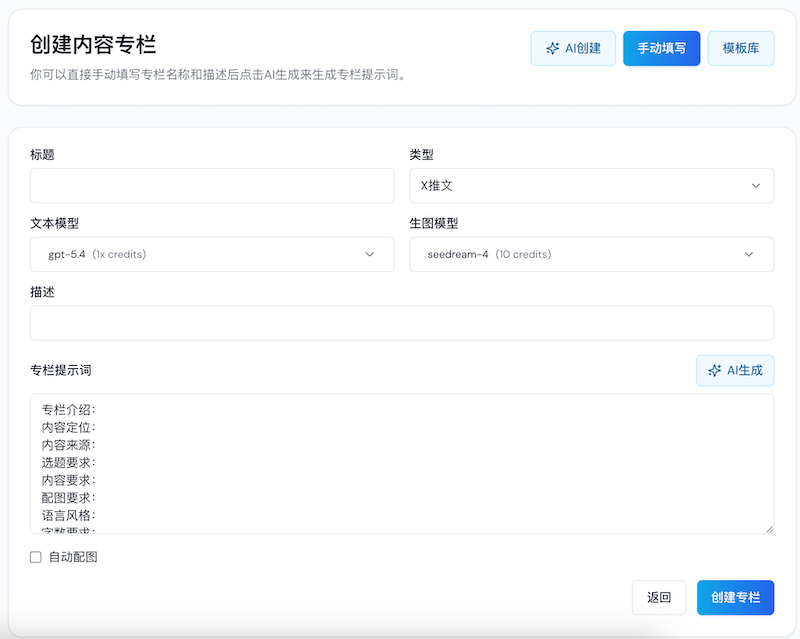
The main fields are:
TitleTypeText modelImage modelDescriptionPromptAuto images
The two most important fields are usually Type and Prompt.
Option C: Start from a Template
If you want to move faster, you can start from the template library. Templates usually already include:

- content positioning
- audience definition
- prompt structure
- sample content
This is a good shortcut when you want a strong starting structure and only need to customize it.
2. How to Choose the Column Type
The best rule is to split columns by publishing channel instead of mixing everything into one stream.
For example:
X Tweet: short-form opinions, reactions, and fast commentaryX Article: longer threads or long-form X-native writingWeChat Article: more structured article-style contentXiaohongshu: visual card-style contentSEO Article: search-oriented evergreen content
If the format, tone, and audience expectation are meaningfully different, separate columns usually work better.
3. How to Write a Strong Column Prompt
The column prompt is the core of the whole workflow because it controls both topic generation and draft generation.
You can write it yourself or click AI generate to draft it automatically.
A strong column prompt usually includes:
- column intro
- positioning
- content sources
- topic rules
- content requirements
- article formula (for article-style columns)
- image requirements
- language style
- length requirements
At minimum, the system should understand:
- who this content is for
- which sources and topics it should prioritize
- whether the tone should be analytical, sharp, casual, or tutorial-like
- how long or short the output should be
If the first version is rough, you can still refine it later by opening the column and clicking Edit column.
4. How to Generate Topics
Once the column exists, the next step is to turn it into a workable topic list.
If the column is empty, the page will show a clear AI topic-generation entry point.
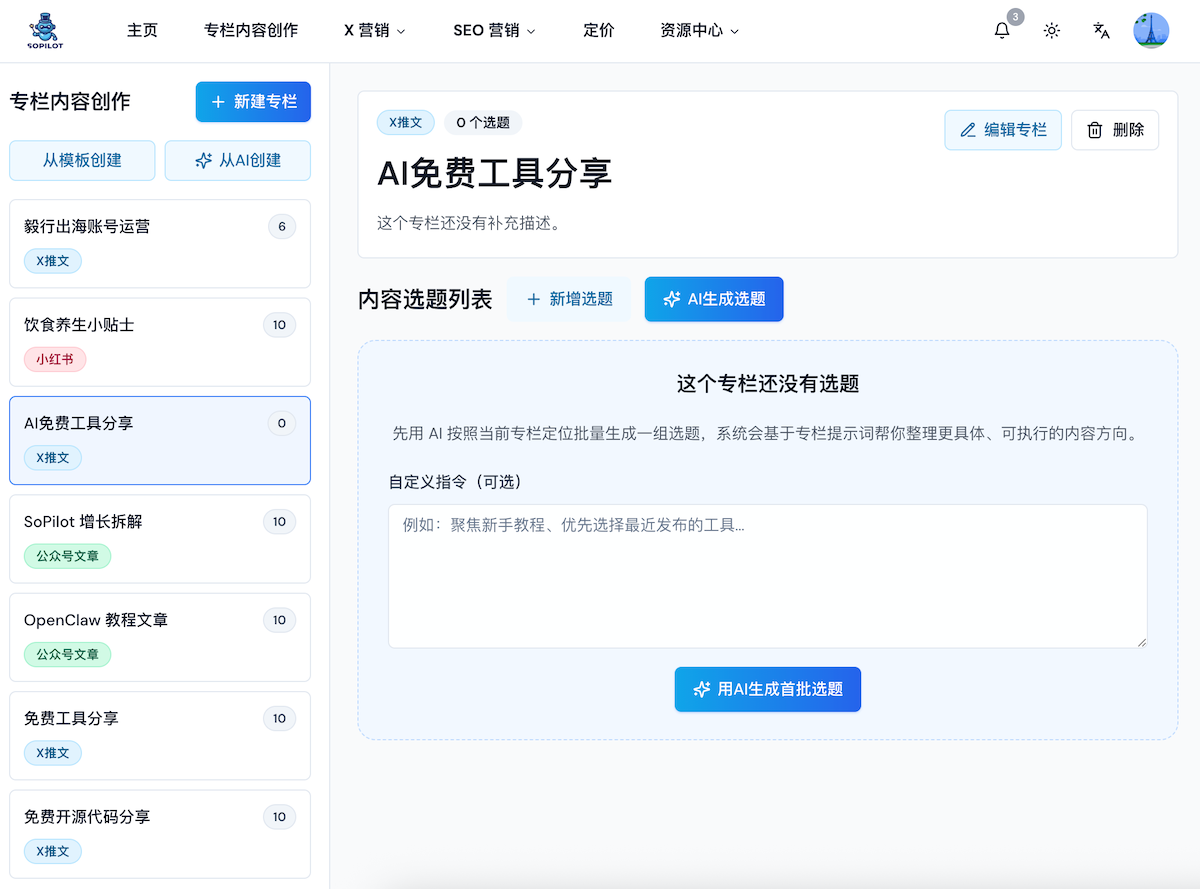
Steps:
- open an existing column
- click
AI Generate Topics - optionally add a
custom instruction - click the AI button to generate the first batch
- review the generated list
That custom instruction is useful for one-off steering, for example:
- focus on tools released in the last 30 days
- make the list more tutorial-driven and less news-driven
- prioritize beginner-friendly topics
- keep it practical instead of conceptual
Topic Generation Tips
- let AI generate a broad batch first, then remove weaker ones manually
- avoid over-constraining the first pass
- stabilize the overall direction first, then refine style later
5. How to Generate the Full Draft
Once you have topics, each topic card can be expanded into full content.
Before the draft exists, the main action is usually Generate.
Steps:
- find the topic you want
- click
Generate - wait for the draft to stream in
- let the system save the generated content
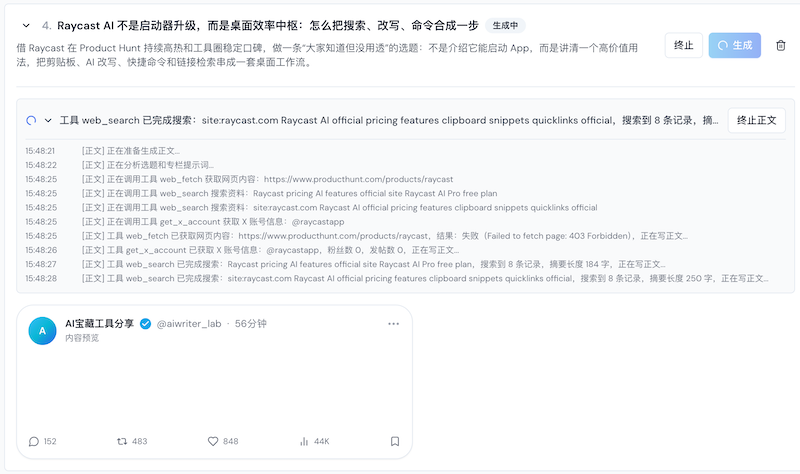
If Auto images is enabled for that column, SoPilot can continue into image generation automatically after the draft is done.
6. How to Edit the Draft
After the draft is generated, you usually have three options:
Manual EditAI Edit- keep the current version
Manual Edit
Best when you already know what to fix and want to adjust structure, examples, tone, or phrasing yourself.

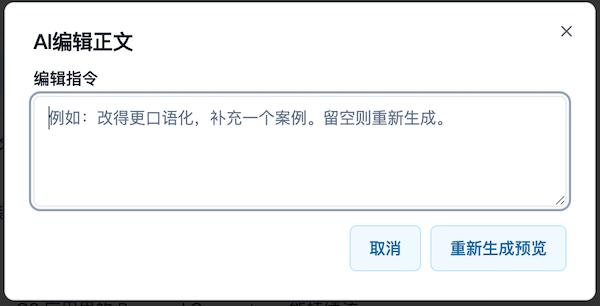
AI Edit
Best when you want to guide the revision with a simple instruction, such as:
- make it sound more like a friend talking
- compress it into a format better suited for X
- make the point of view sharper
- add more specific examples
This lets you refine the current version instead of starting over.
7. How to Generate Images
After the draft exists, you can click AI Generate Images. SoPilot will read the article plus the column's image requirements, create image prompts, and then generate the visuals.
For article-type columns, it will also try to insert the images into sensible places in the markdown.
Typical use cases include:
- Xiaohongshu visual cards
- WeChat article illustrations
- SEO article explainer images
- tweet images or simple cover visuals
Image Tips
- define your visual direction in the column prompt early
- for Xiaohongshu, specify card style, title treatment, and layout
- for article-type columns, make images explain ideas instead of acting as decoration only
8. How Publishing Works
Once the draft is ready, the topic card will show a Publish button. If it has already been posted before, the button becomes Republish.
Before publishing, you can still:
- revise the text manually
- revise the text with AI
- generate images
- delete or replace images you do not like
After publishing, the system can keep track of:
- publish time
- publish status
- publish link, when the platform returns one
So this workflow is not just about drafting content. It is designed to connect production and distribution.
9. Recommended Starter Workflows
If this is your first time using the feature, these are the easiest ways to start.
Setup A: Start a New Column with AI
Best when your direction is still a little fuzzy.
- create the column with AI
- review the draft settings
- create the column
- generate topics in batch
- pick one or two topics first for testing
Setup B: Start from a Template
Best when you want to move quickly without starting from a blank page.
- open the template library
- choose the closest template
- edit the title, description, and prompt
- create your own column
- generate fresh topics from there
Setup C: Build a Long-Term Publishing System
Best when you already know your themes and want steady output.
- split columns by channel
- add new topics regularly to each column
- generate full drafts only for the strongest topics
- connect visuals and publishing into a recurring rhythm
10. Best Practices
- keep one column focused on one clear direction
- split into multiple columns when channel differences are large
- optimize for clarity in the column prompt before sophistication
- generate topics in batches, then pick the best ones for full drafts
- when results drift, revise the prompt before repeatedly patching individual drafts
- review which topics and styles perform best over time
Get Help
If you run into problems:
- visit the SoPilot Help Center
- email [email protected]
- follow @sven_ai for updates and usage tips
Once you connect columns, topics, drafts, visuals, and publishing, content creation stops being a series of one-off prompts and becomes a reusable production system you can keep improving.