Square discovery feed
Browse the discovery feed and engage with eligible short posts and articles.

SoPilot for desktop Chrome
Find short posts and articles in the Binance Square discovery feed or content search. Like posts, follow creators, and post agent-written comments according to your rules.
Desktop Chrome extension 2.0.9 or later
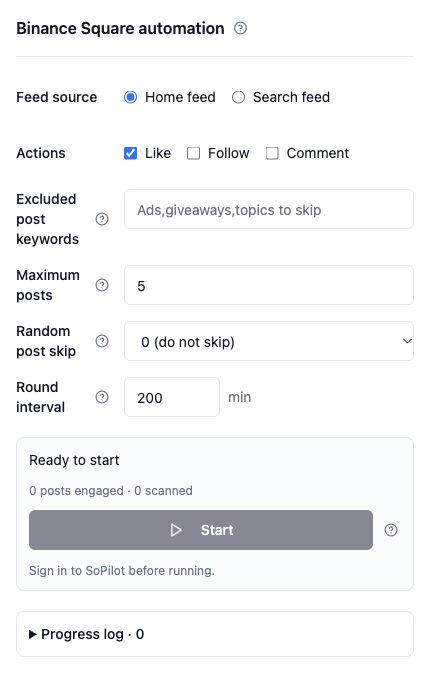
Browse the discovery feed and engage with eligible short posts and articles.
Search for a keyword in Square’s Content results. The extension skips posts whose title or body matches an excluded keyword.
For example, search for “on-chain data” and set a limit of five posts per round. Start with likes or choose a Binance Square comment agent to join the discussion.
Install SoPilot for desktop Chrome, then sign in to SoPilot and Binance Square.
In your Binance Square tab, click the extension icon and choose “Binance Square automation” under Quick Actions.
Select a feed or search, then choose likes, follows, or comments. To post comments, select an agent for this platform.
Set excluded keywords, a per-round limit, random skips, and an interval. Use the side panel to track progress, read logs, or stop.
Keep the target tab and side panel open while it runs. Closing either one or leaving the supported pages stops the task.